StoreFeeder sends orders to QuickBooks Online once they reach the statuses you choose, using your own account codes, tracking options and tax rates, so your books match your sales without manual entry.


The QuickBooks setup guide covers each setting.
QuickBooks Online is Intuit's cloud accounting software, used by small businesses for invoicing, VAT returns, bank feeds and reporting. For multichannel sellers the challenge is getting accurate sales data from several marketplaces and web stores into QuickBooks without retyping it.
With StoreFeeder, orders from every channel reach QuickBooks from one place. Using a different package? See Xero, or Zynk for Sage and ERP systems, or book a demo.
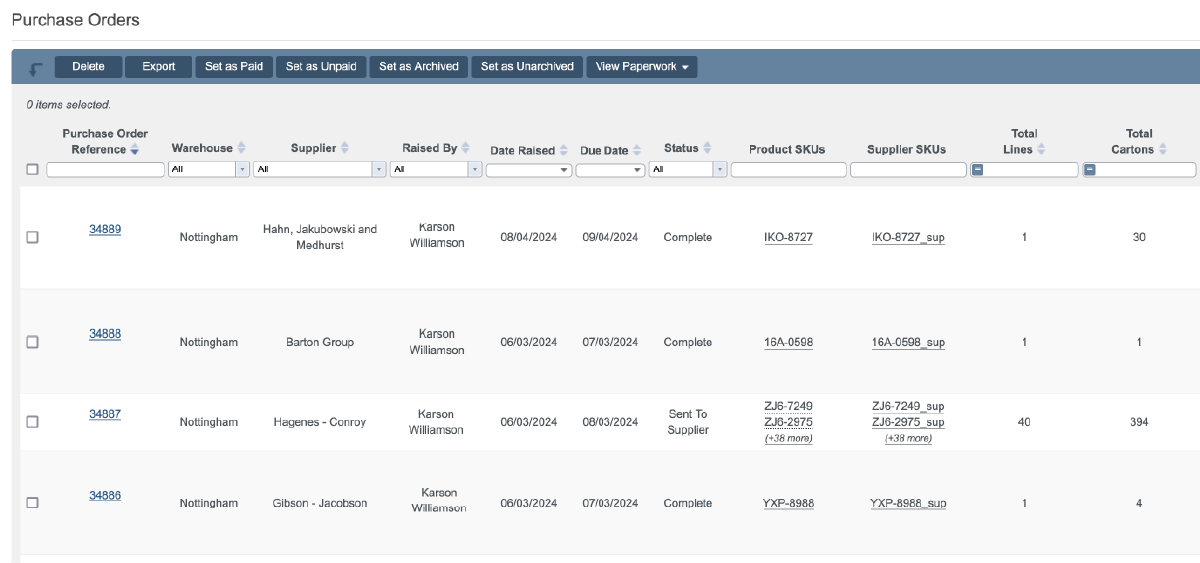
Sales reach QuickBooks automatically once orders hit the statuses you choose.
Once it is configured, it runs on its own.
Your QuickBooks setup stays in charge.
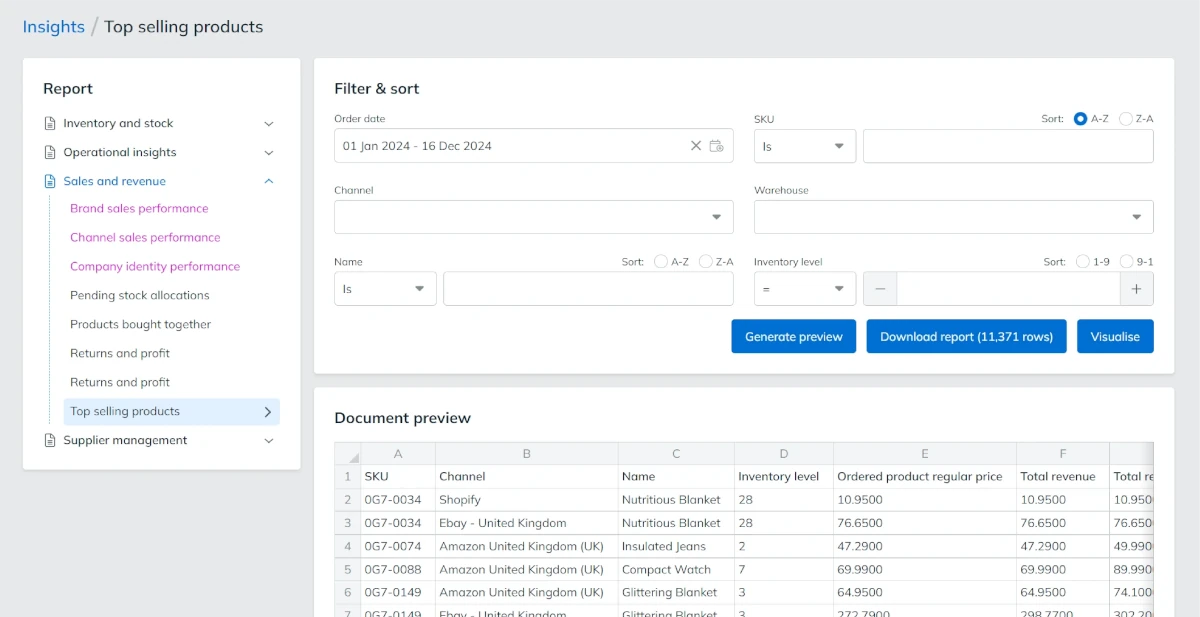
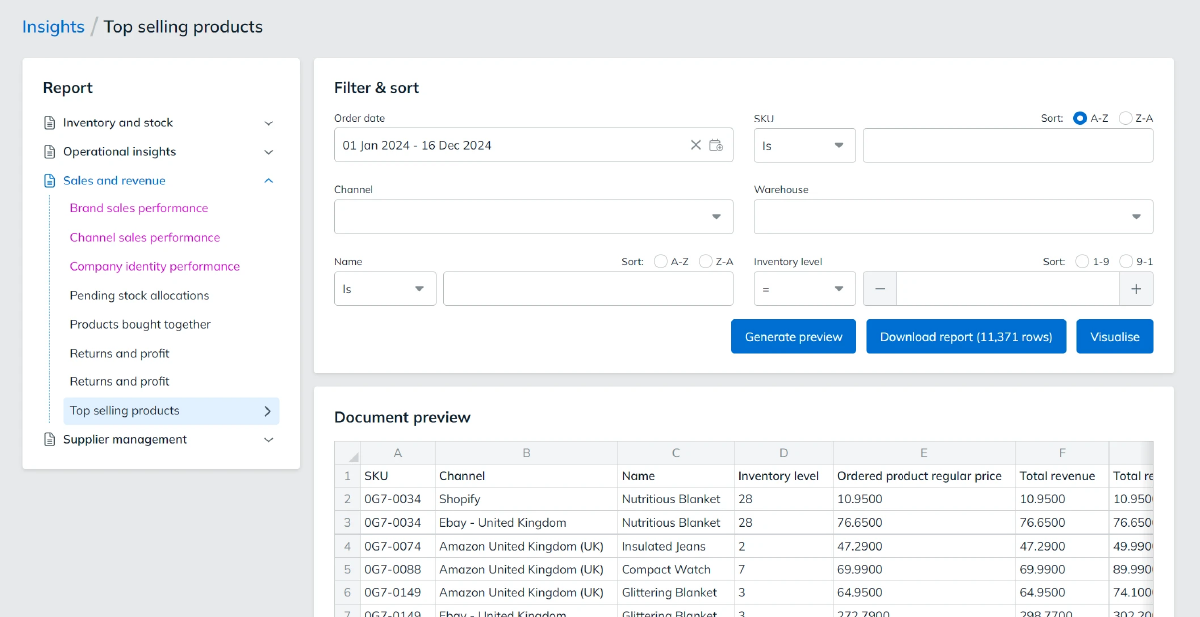
Amazon, eBay, Shopify and your other channels all feed the same QuickBooks company.
Need Sage or an ERP instead? See Zynk.

Book a demo to see how StoreFeeder and Quickbooks can revlolutionise your business' accounting
Book a demo
Link your account with just a few clicks - no technical skills required.
Import orders and shipping details automatically, ready for label generation and tracking.
Automate label creation, manage despatch, and handle returns effortlessly, all from one centralised platform.
Link your account with just a few clicks - no technical skills required.
Import orders and shipping details automatically, ready for label generation and tracking.
Automate label creation, manage despatch, and handle returns effortlessly, all from one centralised platform.
Add a QuickBooks integration in StoreFeeder, sign in to Intuit and grant access.
Pick the order statuses, the export type and which channels should send orders to QuickBooks.
Map your tax rates and account codes, set the integration to active, and orders flow into QuickBooks automatically.
Link your account with just a few clicks - no technical skills required.
Import orders and shipping details automatically, ready for label generation and tracking.
Automate label creation, manage despatch, and handle returns effortlessly, all from one centralised platform.

Yes. StoreFeeder sends orders to QuickBooks Online once they reach the order statuses you choose, using your own account codes, tracking options and tax rates. Orders from Amazon, eBay, Shopify and your other channels all feed the same QuickBooks company, so your books match your sales without manual entry.
In StoreFeeder's Integration Manager, add a QuickBooks integration, sign in through Intuit, grant access and run Test Connection. Then choose the order statuses and export type, turn on Export Orders for each channel, map your tax rates and set the integration to active. The QuickBooks setup guide covers each setting.
Yes. There are two export types. Transaction Per Order sends each order as it reaches an export status, while Transaction Per Channel Per Day sends one daily transaction per channel. You choose the type that suits how you or your accountant want sales to appear in QuickBooks.
Every StoreFeeder tax class is mapped to a QuickBooks tax rate before exports start. The integration cannot go live until every tax class is mapped, so nothing posts with the wrong VAT. Your account codes, shipping account and tracking options are also pulled in from QuickBooks when you connect.
Yes. You turn Export Orders on for only the channels you want in QuickBooks, and pick the order statuses that trigger an export. Channels can be switched on or off without touching your QuickBooks settings, and you can test the connection at any time from Integration Manager.
Are you ready to take your eCommerce business to the next level?
Book a free demo with StoreFeeder now and see how we can help you grow your business.