



































Welcome to the latest Release Updates post.
Happy New Year!
We hope you all had a successful peak and that everyone's business performed as expected.
As many of our long standing clients will know, over Christmas, we take the opportunity to work on bug fixes and also some of the bigger exciting features we have planned. Since it's the majority of our client's busiest period, we don't wish to risk causing any downtime to the system so don't release any major features during this time.
So with that being said, what better time could there be than now to reflect on the highlights of the past years worth of updates and compile them here for any you may have missed!
Rest assured though that, as per usual, our developers have been working hard both to squash some pesky bugs and also to bring you some truly great features over the coming months.
January
This and Februarys highlight can be tied together as two important updates to our shipping rules tool. Since shipping rules are such a fundamental function in the automation of StoreFeeder, it was nice to kick off the year with such an update to what was acheivable with them.
Amazon Business Criteria for Shipping Rules

Whilst it's been possible to set up shipping rules that look for the channel being Amazon or if it's a Prime order for a long time, we didn't have the option to set criteria for whether the order was place through Amazon Business, which could certainly have an impact on the shipping given to the order!
So now, we've added the criteria of "Amazon Business" to the shipping rule creation/editor tool as you can see below:

February
Part 2 of our update to our Shipping Rule tool and these new criteria were certainly ones in high demand!
New Criteria for Shipping Rules
Warehouse
It's not uncommon for different warehouses to have different shipping policies due to the location they are in or simply because they operate on a different schedule/handling time. With this in mind, for our multi-warehouse customers, we've added a new criteria to shipping rules and that is 'Warehouse'. This will allow you to create shipping rules that are unique to your warehouses and not have to rely on workarounds or manual intervention which should overall boost efficiency.
Multiple Packaging Sizes
Perhaps not particularly relevant to those who have now long set their shipping rules up but certainly relevant for those creating new ones! You can now select multiple packaging sizes when setting criteria for your shipping rules; previously if you wanted a rule to work for multiple packaging sizes, you'd have to create the same rule multiple times but with a different packaging size selected, this eliminates the need for that and hopefully saves time for those creating rules going forward.
March
Perhaps a contender for one of my favourite updates this year. As part of the implementation team, I have my fair share of interaction with our mapping tool; the addition of suggested mapping actually changed the game in how easy it's made to map listings in which the SKUs don't entirely match up.
Suggested Mapping Update
Manually mapping listings is a great way to map your listings to your products if your SKU's don't match up and you don't know your product range/SKU's like the back of your hand. It's been a while since we revisited this page and looked at what we could do better on it but with this update, we've brought a whole host of improvements to it.
Firstly, you'll now be presented with a summary and image of the listing you are currently mapping in the top left of the page:

You'll also notice that, in the top right, you now have the option to cycle through to either the next or previous unmapped listing. This is a handy tool if you're mapping multiple listings and don't want to faff about with going back to the listings grid to find the next one to map.
We've also updated the algorithm used to provide suggested products to map the listing to. Scroll a little further down on the page and you'll be presented with suggested products to map to; this list is generated by taking the SKU, Name and also price into consideration and even provides an estimate on how likely it is to be the same product!

Overall, this is a fantastic update to manual mapping in StoreFeeder that I personally have found makes it an absolute breeze. I hope you get a lot of use out of it too!
April
April saw the introduction of being able to set handling times on a per channel basis, which helped internally visualise when orders needed to be shipped by and thus helped meet company SLAs.
Channel Handling Time
Amazon orders are imported into StoreFeeder with a "ship by" date which is very handy for making sure SLA's are met both with Amazon's VTR metrics and your own companies standards as well. It's also possible to get a ship by date on some other channels by entering handling times on an individual listing basis but we've now added a field to each integration's settings page that will allow you to set a default handling time (in days), so that any orders that are imported without handling time against the listing can be given one upon being brought in to StoreFeeder. This is especially useful for things such as custom integration's which it was previously impossible to set ship by dates on orders that came in from them.
You can find the "Handling Time in Days" field under the Order Processing section of any of your integrations (apart from Amazon) as shown below:

And just like that, every order that imports from the channel, without a handling time, will be assigned one and as such will have a ship by date given to it. This means that you can filter by "Ship by Date" during pickwave creation to best prioritise what needs to go out and when.
May
My birthday month and also the release of the incredible Insights tool to all of our clients. What more could I ask for? Genuinely, the new reporting system we have is excellent.
StoreFeeder Insights
I know I mentioned it in May's release notes but this last month marked the official release of StoreFeeder's Insights page, a powerful new reporting tool designed to give you, our users, greater control over business-critical data. It's all part of the upcoming StoreFeeder Version 3 which you can now access multiple pages of if you wanted to give them a go.
To quote our own Founder and Managing Director, Brian Williamson: "With StoreFeeder Insights, we’re giving you a smarter way to interact with your data. This launch marks a major step toward making reporting in StoreFeeder more intuitive, insightful, and tailored to the real-world needs of modern retailers. We’ve listened to multiple StoreFeeder users, and Insights reflects our commitment to continual innovation and user-centric design."
To access the insights page, simply look under the "Reports" tab at the top of StoreFeeder an click the "Insights" link.
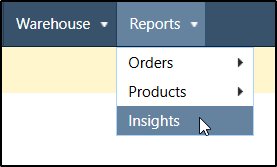
Check out our video on using the Insights page below:
June
Further improvements to the freshly released Insights page, I took any opportunity I could to shout about it!
Insights - Picking Logs with Notes
Firstly, I'll start by saying that if you haven't checked out the insights page in StoreFeeder (part of our StoreFeeder Version 3 preview pages) then you should certainly do so, the reporting engine on that page is spectacular and will help you build the perfect reports you need for your business. You can learn all about the insights page by visiting our knowledgebase here.
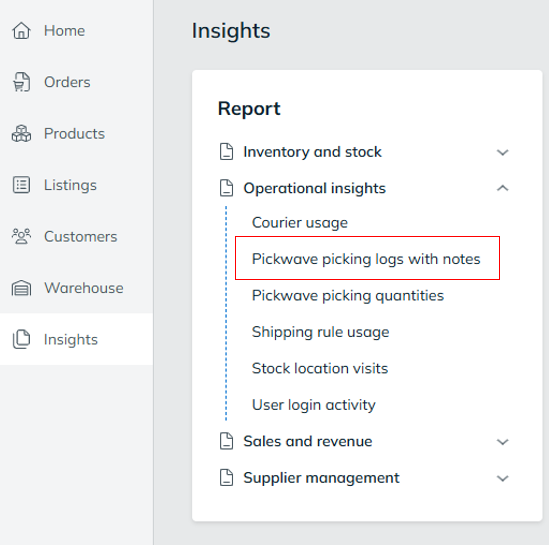
Now as you can well imagine, with this being such a new page, we're looking for all the feedback we can get on it, including suggestions for pre-built reports that you would like to see. One of the suggestions we received was for a pickwave log report that included all the information that you could usually find individually on a pickwaves audit log but for all pickwaves within a specified date range. This could prove exceptionally useful as a tool that you could run at the end of the day to help identify any issues with barcoding or simply to see if some pickers are skipping scanning more than others!
You can find the new report on the insights page, under the 'Operational Insights' drop down as shown below:
July
Being able to cancel consignments directly through StoreFeeder instead of having to go through the courier is truly a blessing - not one we are able to accommodate for every courier though mind. However, in July we were able to expand the couriers that do support it and implement this feature for our ParcelForce integration!
ParcelForce Delete Consignments

Firstly, an update that will be music to our ParcelForce users ears no doubt; to bring our ParcelForce integration up to speed with most of our other couriers we've added support for deleting ParcelForce consignments directly through StoreFeeder, meaning you don't even need to leave our software in order to delete any mistakenly created labels/consingments with ParcelForce. You can then simply create a new one once you've done that, either with a new service or perhaps an entirely different courier, the choice is yours.
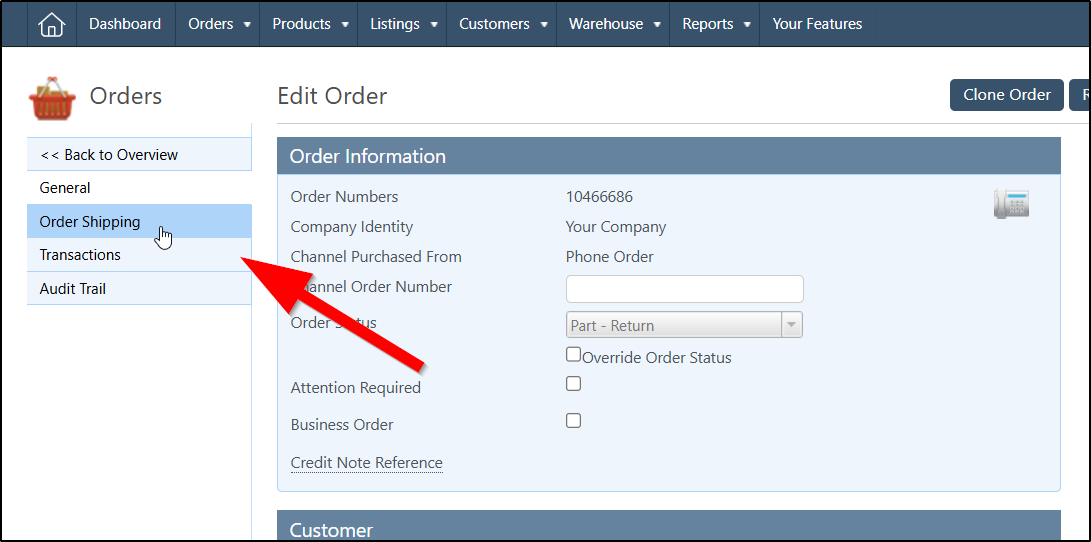
If you weren't aware of how to delete consignments through StoreFeeder, all you need to do is edit an order that already has a label generated for it and click on the 'Order Shipping' tab:
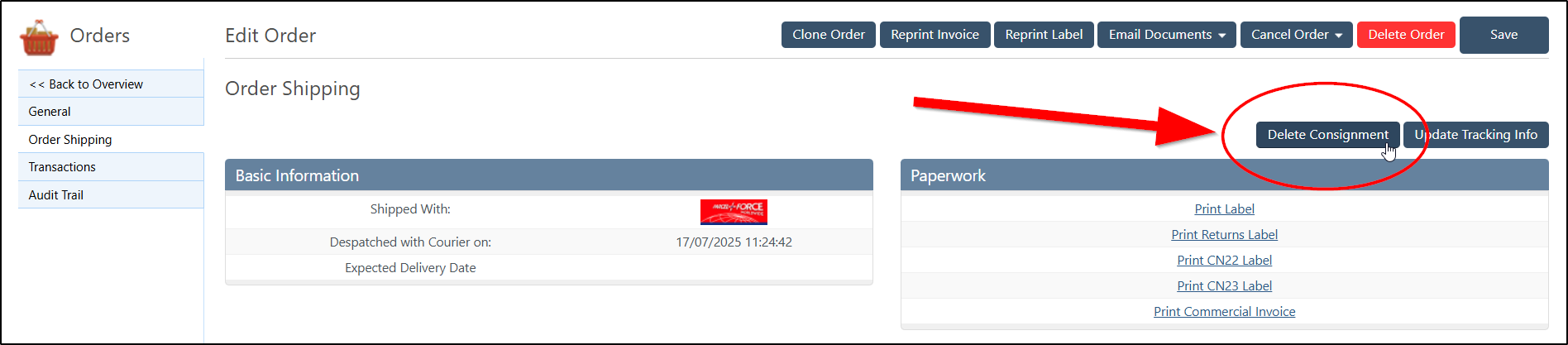
Once there, you can simply click the 'Delete Consignment' button and StoreFeeder will cancel the label directly with ParcelForce and reset the order back to 'Complete (Ready to Pick)' status or 'Assigned' if you want it to be put back onto a pickwave.
August
In August we made a huge step up in the amount of control we can offer you over your warehouse management and picking efficiency, our aisles & levels feature was released.
Aisles & Levels
We’ve introduced a new Aisles & Levels feature in StoreFeeder that gives you more control over who picks what during pickwave creation. This means faster, safer, and more efficient warehouse operations.
What’s New?
You can now assign each bin location an Aisle and a Level. While aisles help with basic warehouse organisation, Levels open up a new way to manage pick allocation:
- Restrict picks by level when generating a pickwave.
- Assign specific pickers to only pick from certain levels (for example, avoiding high shelves for safety or physical comfort).
- Create pickwaves that match staff capability while still maintaining picking efficiency.
Why This Matters
In many warehouses, not all staff should (or want to) pick from every location. Whether due to safety policies, accessibility needs, or efficiency preferences. This update allows you to:
- Improve safety by keeping picks from higher or harder-to-reach levels with the right team members.
- Reduce wasted time by matching staff to comfortable working heights. No need to fetch ladders or ask for a forklift driver.
- Optimise picking speed by letting each picker focus on their assigned levels.
How It Works
- Assign an aisle and level to each bin location in StoreFeeder.
- When creating a pickwave, filter picks by level to control which items appear for which picker on their pickwave.
Example in Action
You might:
- Create a ground-level-only pickwave for new staff in training.
- Assign a pickwave to taller staff who do not need to fetch ladders to pick from higher locations.
- Assign a pickwave to an employee with a forklift licence for those high up picks.
Get Started
Set up your aisles and levels in StoreFeeder and start tailoring your pickwaves to match your warehouse and your team.
Full guide:
Warehousing Aisles & Levels Functionality – Support Guide
September
Temu had been surging in popularity and we were inundated with requests for an integration to be developed with StoreFeeder. In September we were able to act on those requests and delivered a brand spanking new integration!
Temu Integration

A heavily requested new integration to add to StoreFeeder's already strong showing, we now integration with popular online marketplace Temu! Temu is a great marketplace to expand out to; because of its reputation for having highly competitive pricing, it attracts a large customer base looking for the best deals out there, making it an ideal marketplace for the savvy shoppers out there.
You can find our new Temu integration under "Marketplace" when creating a new integration in StoreFeeder:
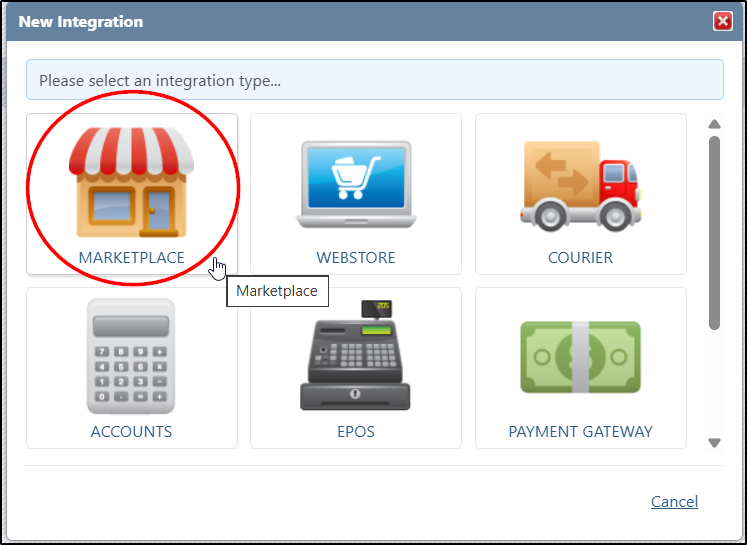
Once the integration has been created, the only thing you need is an access token from your Temu account in order to establish the connection.
So how do you get an access token? Well, simply log in to your Temu Seller Center account, navigate to the Apps and Services section, go to the App Store, find the StoreFeeder, and click the Authorize button to generate the token. Once you've got the token, come back to StoreFeeder and pop it in the access token field; set the integration to active and set save, you're good to go.
You can find our extended guide on connecting your Temu account here.
October
As we were knee deep in Fall one of our pages in StoreFeeder was to fall as well. Of course it was then replaced with a new version of that same page entirely and a much more useful one at that!
Purchase Order Import Page

Our "CSV Purchase Order Import" page has been rebranded as just the "Purchase Order Import" page, which makes sense as it's not just CSV's we can import after all! Along with this, it's also been given a bit of a makeover; the page looks a lot more intuitive now and also offers the option to download a blank template to help better understand how StoreFeeder expects a typical purchase order file to look.

Previous users will also notice that we've added a new field: Quantity Mapping. This new field allows you to determine whether the quantity on the spreadsheet is in cartons or units, something we weren't previously able to do! You can add a carton quantity to your products by editing the product, scrolling to the bottom of the "General" tab and finding the "Supplier Carton Quantity" field under the supplier information section.

You can also do this action in bulk using our old faithful product import/export tool.
November
It feels like just yesterday I was writing the release notes for November but if you didn't catch them, I'd say the highlight was this addition to our already excellent product import/export tool.
Import / Export Supplier Data
Most of you will have already used our excellent product import/export tool to make changes in bulk to your products, perhaps you've even used it as a means to extract data to create custom reports as well, there's lots of uses for such a simple yet powerful tool.
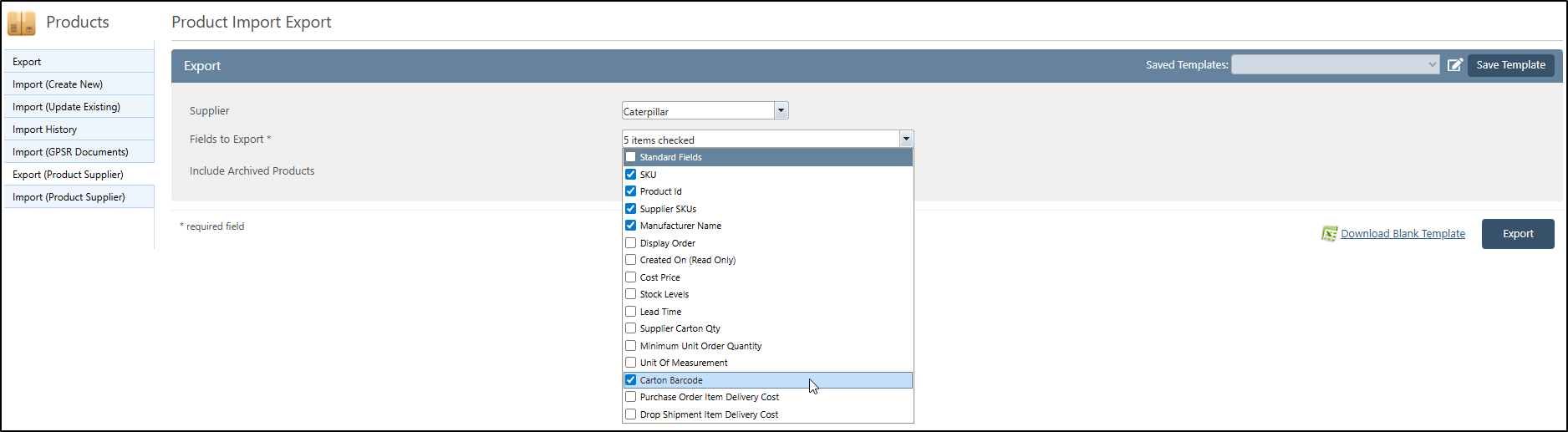
Whilst it's possible to edit product supplier data through the product import/export tool, we recognise that it wasn't the most efficient when it came to wanting to edit just a single suppliers data on a product and it may have even been missing a couple of the newer fields related to suppliers such as "Carton Barcode" for example. To fix this we have added to new pages to the import/export page specifically for manipulating/extracting data related to suppliers, the aptly named:
- Export (Product Supplier)
- Import (Product Supplier)
Through these pages you can export and import product data by supplier as you can see below:
We hope this helps simplify the process of making adjustments to supplier data.
Finally….
There have been some great new features and fixes implemented in this last year's releases and we hope you find them useful in one way or another.
As always we’ll keep working hard to provide you with the best service we can.
From all of us here at StoreFeeder, happy selling and a happy new year!
The StoreFeeder Team


